Getting started tutorial
Learn how to use Rebuttr to manage your peer review responses from start to finish.
Step 1: Installation
Install Rebuttr and its dependencies. This takes about 2 minutes.
Install Dependencies
First, install the OpenCode CLI (required for AI features), then install Rebuttr.
Tip
On macOS, you may need Xcode Command Line Tools. Run xcode-select --install if you see compilation errors.
Step 2: Add Your Paper
Import your reviewer comments into Rebuttr. You can paste text, upload files, or use the CLI.
Import Reviews
Launch Rebuttr and add your manuscript with reviewer comments.
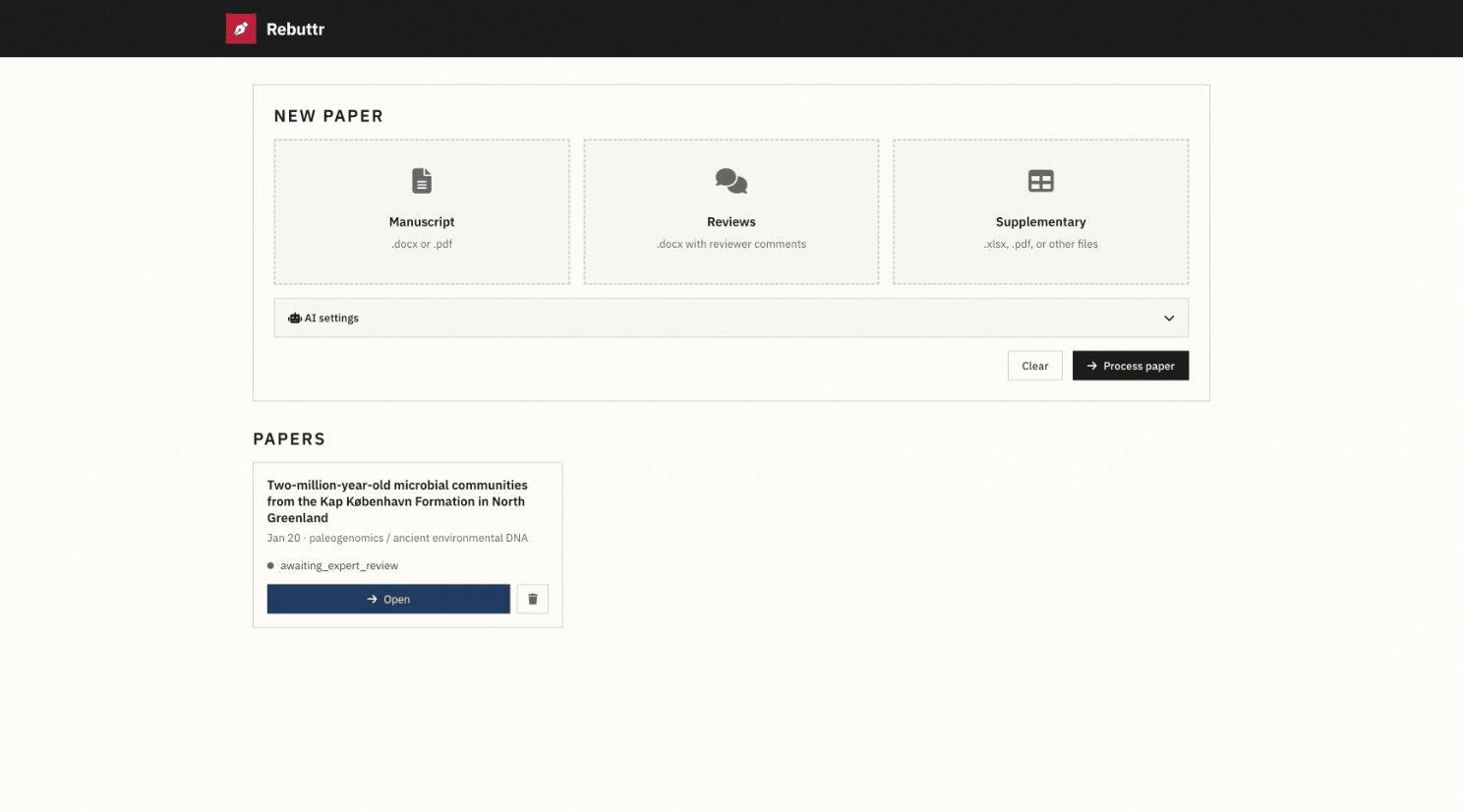
Upload your manuscript and reviews to get started
Steps to Add a Paper
- Launch Rebuttr:
rebuttr - Click "Add Paper" button (top right)
- Enter your paper title and metadata
- Choose how to import reviews:
- Paste text: Copy/paste reviewer comments directly
- Upload file: Drop a PDF, DOCX, or TXT file
- Import JSON: Use structured JSON format
- Click "Process" to parse the reviews
Supported Formats
Rebuttr supports PDF decision letters from journals, DOCX files with reviewer comments, and structured JSON for programmatic import.
Step 3: Process with AI
Let AI analyze your comments and generate expert discussions with potential solutions.
AI Analysis
Click "Process Paper" to let the AI analyze each comment and generate responses.
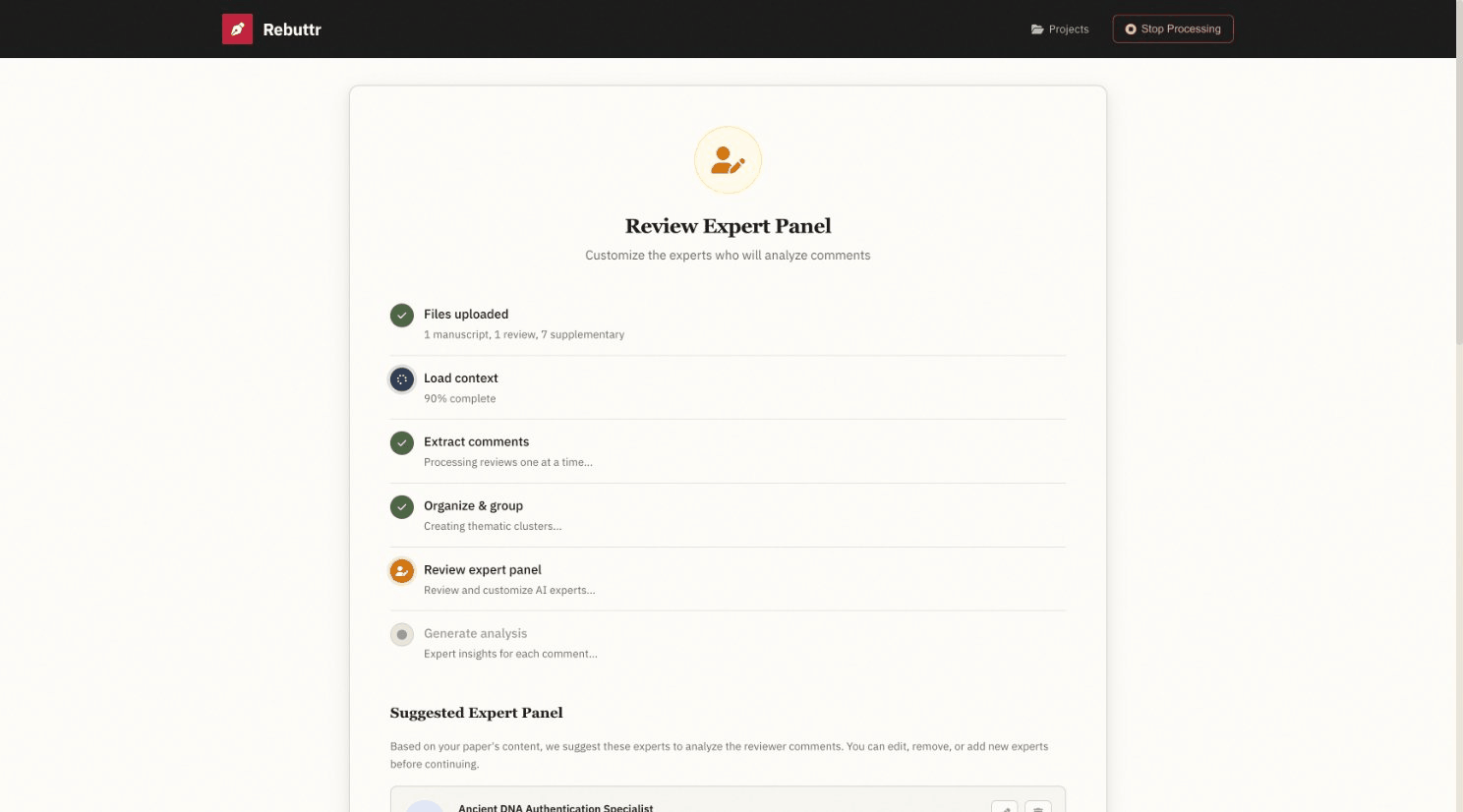
AI processing analyzes each comment and generates responses
What Happens During Processing
- Click the "Process Paper" button in the dashboard
- Watch the progress as AI analyzes each comment:
- Categorizes comment type (major/minor)
- Identifies key concerns
- Generates expert panel discussion
- Creates potential solutions
- Processing runs in the background - you can continue working
What the AI Generates
For each comment, you'll get: an expert panel discussion, recommended response, advice to the author, and 2-3 alternative response strategies with different effort levels.
Step 4: Review & Edit Responses
Browse AI-generated responses, select from strategies, and refine your answers.
Refine Your Responses
Select from AI-suggested solutions and customize your responses.
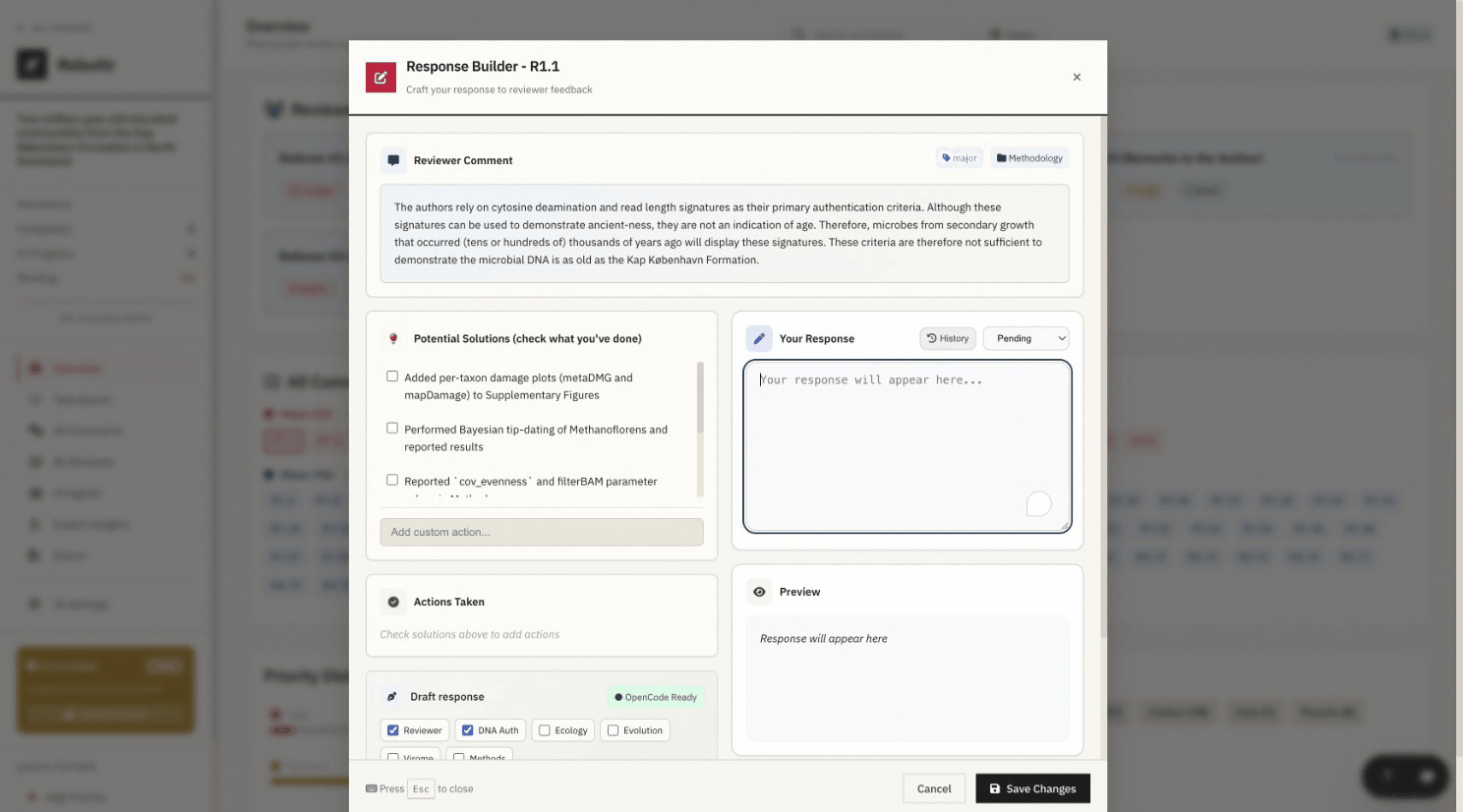
The Response Builder modal with AI-generated solutions and response editor
Steps to Review Responses
- Click any comment to view its detail page
- Review the Expert panel discussion for insights
- Choose from Potential solutions:
- Low effort Quick acknowledgment
- Medium effort Detailed explanation
- High effort New analysis or revision
- Click "Use This" to apply a solution as your draft
- Edit the draft response in the text area
- Mark as Complete when finalized
Important
Always review and edit AI-generated responses. They are drafts to help you get started, not final answers.
Step 5: Export Your Responses
Generate a formatted document with all your responses, ready for journal submission.
Generate Documents
Export your completed responses in various formats.
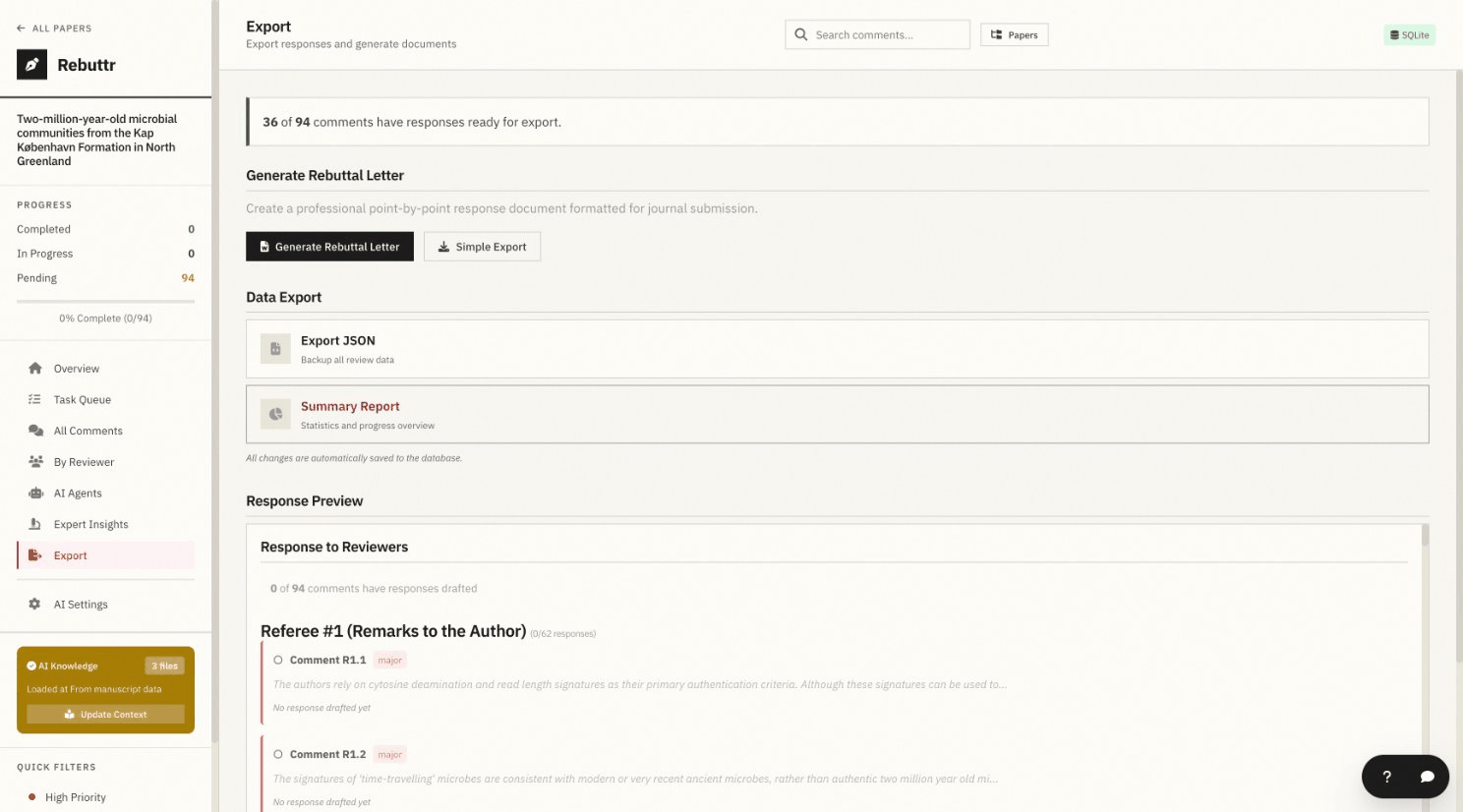
Export your responses as professional documents or data backups
Export Options
- Go to the Dashboard view
- Click "Export" dropdown
- Choose your format:
- Word Document: Formatted DOCX file
- Plain Text: Simple TXT file
- JSON: Structured data for backup
- Review the generated document
- Submit with your revised manuscript!
Pro Tip
Export to JSON periodically to backup your progress. You can reimport this file to restore your work.
Next Steps
You now know the basics of Rebuttr. Explore these resources to learn more:
- Installation Guide - Detailed setup instructions
- Configuration - Customize settings
- Troubleshooting - Common issues and solutions
- API reference - For advanced users and developers